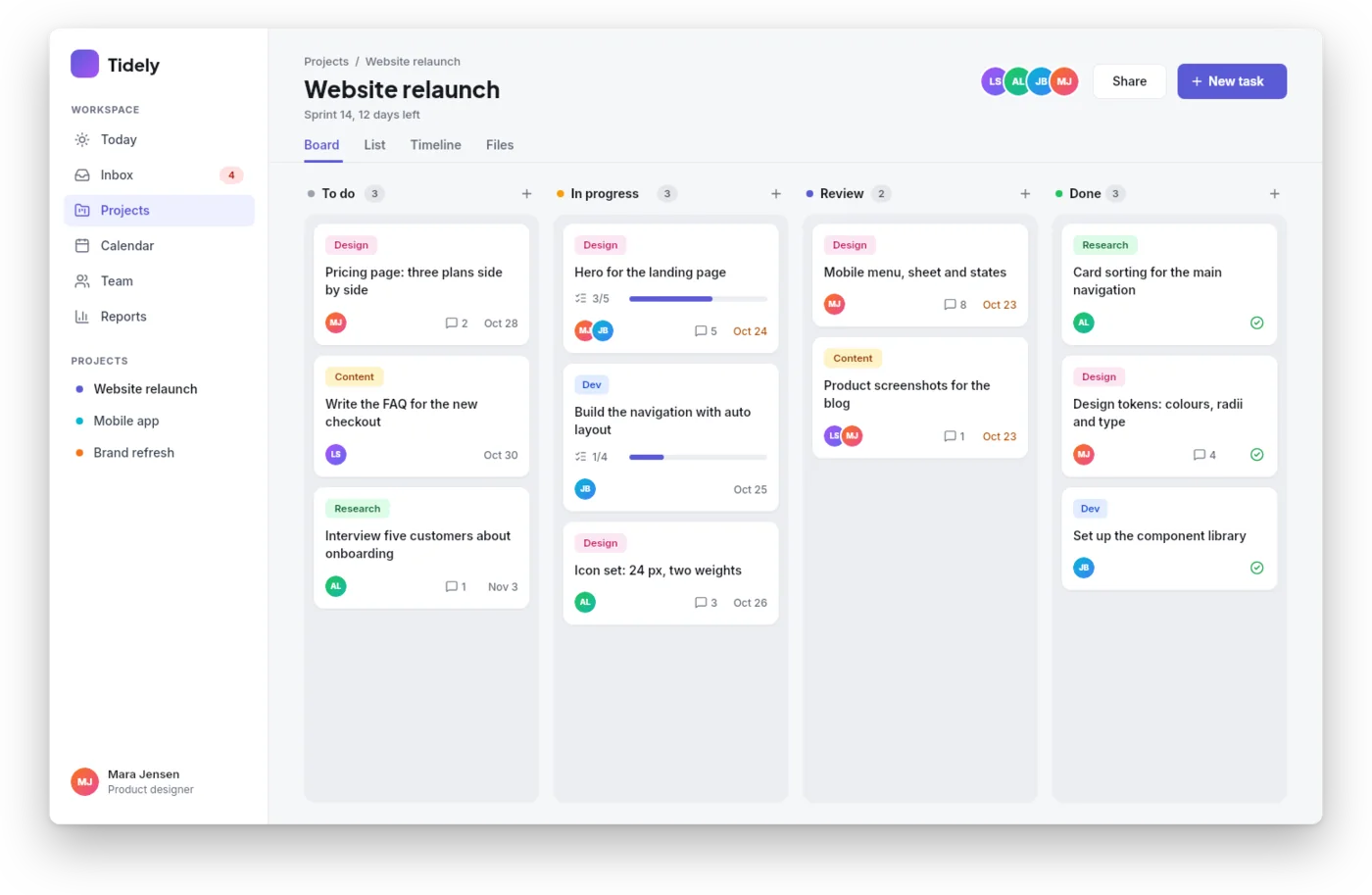
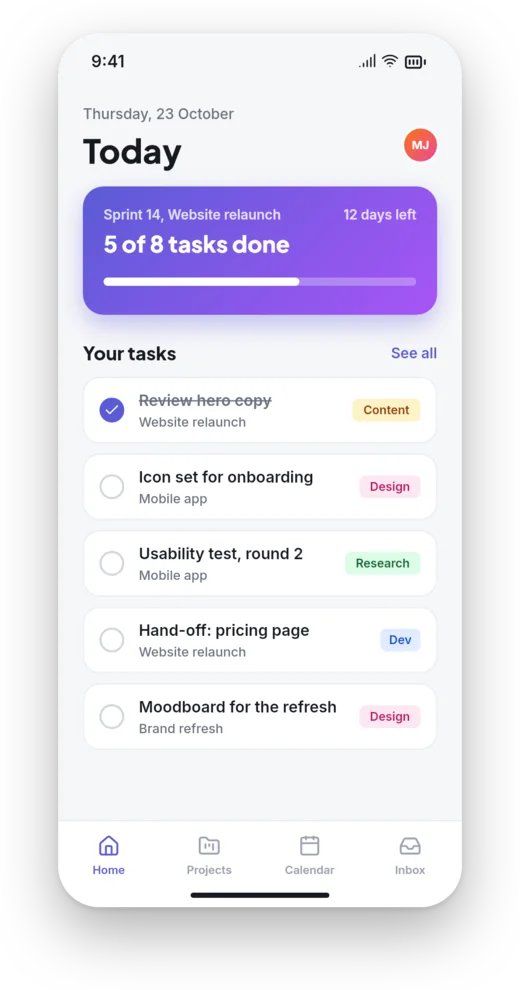
The screenshots on this site show Levee with a planning app called Tidely on its canvas: a project board for the web and a screen for the phone. Tidely does not exist. Claude drew it in Levee, through the MCP server that comes with every Levee, and looked at every step before it went on.
1. Connect the agent
One line in the terminal is enough. You find it in Connect an AI agent to Levee, matched to your system. After that, Claude Code can read and change Levee documents.
2. Let it read the rules first
Levee's documents follow a few rules that are not in any field list: only a board may sit at the top of a document, a font has to be available in Levee, an instance of a component may only change its text and its size. The agent asks for them before its first edit, so its work is not refused halfway through.
3. Tokens and components before screens
The agent started with a small design system, the way a designer would:
- Colour tokens for the brand, the ink, the muted text, the lines and the surfaces.
- Radius tokens for controls, cards and sheets.
- Font tokens for display, title, body and label text.
- Components for the primary button, the avatars and the coloured tags.
The components appear on both screens: the button in the header, the avatars on the board and the phone, the tags on every card. Change the component, and every one of them follows.
4. Screens, one pass at a time
Each screen took several passes: first the sidebar, then the header, then the board. A pass is one step in Levee's undo history, so a pass we did not like was quickly undone with Ctrl+Z. An edit is plain JSON, for example a card's title:
{ "op": "create", "parent": "Card Review 1",
  "props": { "kind": "text", "name": "Title", "x": 14, "y": 46, "w": 218, "h": 20,
             "text": "Mobile menu, sheet and states",
             "size": 14, "weight": 600, "family": "Inter, sans-serif" } }
5. Look, then fix
After each pass the agent rendered the board and looked at it rather than trusting its numbers. That is how it caught avatars overlapping each other's initials, and a button that hung over the edge of the header. Both could be fixed in one more pass.
What we would do again
- Ask for tokens and components first. Screens built on them stay consistent, and changes are quick to make.
- Keep passes small, so each one is easy to look at and easy to undo.
- Name layers as you go. The agent finds things by name, and so do you.